



Establish a permanent connection to your Data-Report-Folder
UPDATE: Your data has been migrated to a new server: \\wss01.i-med.ac.at\share1\Medizinische_Biochemie\Protein Facility
Be sure to update your connection-settings and the folder-path as shown below!
NOTE: Users within the Tirol-Kliniken-Network please make sure to have installed the Client for Microsoft Networks. Find some guidance [here].
NOTE: You must have a valid user-id (q-id) of the Medical University of Innsbruck in order to make use of the following tutorial.
• Instruction for Apple Mac users
• Instruction for Microsoft Windows users
-
Open your Windows-Explorer.
Windows 11
In the left-hand pane right click ‚This PC‘ and select ‚Map network drive‘: See screenshot -
A new window will open up. Please enter the following data:
For users within the I-Med-Network:
Drive: Select a free drive-letter or use the one recommended by the system.
Folder: \\wss01.i-med.ac.at\share1\Medizinische_Biochemie\Protein Facility\User\<group leader q-id>
(eg: \\wss01.i-med.ac.at\share1\Medizinische_Biochemie\Protein Facility\User\q001xy)For users within the TILAK-Network:
Notice: Please try to connect with the same settings shown above (I-Med-Network). The server-name should be routed correctly.
If the connection can not be established for some reason try the following:
Drive: Select a free drive-letter or use the one recommended by the system.
Folder: \\10.18.196.21\share1\Medizinische_Biochemie\Protein Facility\User\<group leader q-id>
(eg: \\10.18.196.21\share1\Medizinische_Biochemie\Protein Facility\User\q001xy)
Please note that the last folder is named after the group leader q-id!Select „Reconnect at logon (Verbindung bei Anmeldung wiederherstellen)“ if you want to have the network-drive reconnected after a restart of your system.
-
The required folder-privileges already have been assigned. If you are a member of the I-Med-Domain no further authorization is required. You will find your Data-Report-Folder in addition to your other network-drives.
If you are not a member of the I-Med-Domain you are prompted for a username and password:
Username: i-med\<your q-id>(eg: i-med\q001xy)
Password: The same that is used to access your emails from the I-Med-Mailserver.
Mac OS X
1. Open the Finder and in the menubar select Gehe zu/Go. In the submenu select Mit Server verbinden/Connect to Server.
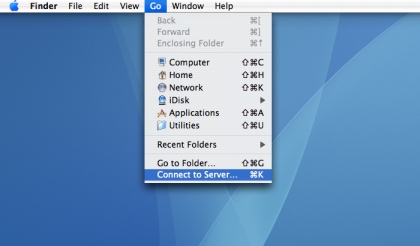
2. A window is displayed in which users within the I-Med-Network should write or paste the following path with the q-id of the group leader:
smb:\\wss01.i-med.ac.at\share1\Medizinische_Biochemie\Protein Facility/User/<q-id group leader>
Users within the Tirol-Kliniken-Network should apply the following path:
smb://10.18.196.21/share1/Medizinische_Biochemie/Protein Facility/User/<q-id group leader>
After inserting the server address (for example see the screenshot below) push the Verbinden/Connect button.

3. When your computer has found the server, a window appears where you should insert your name (q-account) and password. Then push the Verbinden/Connect button.
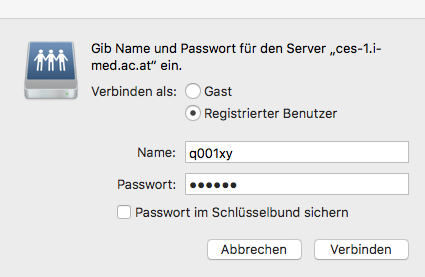
If the process of connecting the desired network-folder is not working in the described way feel free to contact juergen.krabichler@i-med.ac.at (phone: 71023).
Protein Core Facility
- Home
- Services

- Electrospray Ionization Mass Spectrometry
- N-Terminal Protein / Peptide Sequencing
- High Performance Liquid Chromatography
- High Performance Capillary Electrophoresis
- Atomic Absorption Spectrometry
- Instrumentation & Software
- Sample Submission
- Data Report
- Instrument Status
- Publications
- Protocols
- Tools & Links
- Staff
- Pricing
- Home
- Services
- Electrospray Ionization Mass Spectrometry
- N-Terminal Protein / Peptide Sequencing
- High Performance Liquid Chromatography
- High Performance Capillary Electrophoresis
- Atomic Absorption Spectrometry
- Instrumentation & Software
- Sample Submission
- Data Report
- Instrument Status
- Publications
- Protocols
- Tools & Links
- Staff
- Pricing